EE Brightbox User Manual Page 1
Browse online or download User Manual for Routers EE Brightbox. EE Brightbox User manual
- Page / 207
- Table of contents
- BOOKMARKS

- EE User Manual 1
- EE Bright Box User Manual 10
- USB File Sharing 12
- Disconnect Old Equipment 18
- Engineer Visit 18
- Check it over 21
- Six simple steps to move 22
- Advanced Set-Up tab 34
- Bandwidth Control 35
- MAKING CONFIGURATION CHANGES 38
- HELP PAGES 39
- USB DEVICE 45
- INFORMATION 45
- MIGRATION WIZARD 55
- ADSL MODE 98
- WIRELESS SETTINGS 98
- CHANNEL AND SSID 99
- BANDWIDTH CONTROL 112
- USB FILE SHARING 115
- PORT FORWARDING 128
- PORT TRIGGERS 132
- NAT MAPPING TABLE 135
- ACCESS CONTROL 138
- IP address 140
- MAC FILTER 143
- INTRUSION DETECTION 155
- Description of DMZ settings 158
- TRAFFIC MAPPING 162
- CONFIGURATION 172
- RESTART 175
- How to restart your router 176
- FACTORY DEFAULT 177
- TIME SETTINGS 184
- SYSTEM LOG 194
- Chapter 3: Installation 199
Summary of Contents
EE User Manual Bright Box Wireless Router
EE Bright Box User Manual 10 When the router is connected to power, switched on and only a broadband cable is connected, the lights should be lit a
EE Bright Box User Manual 100 Wireless feature. See how to change the wireless channel on page 69 for further information. Extension Channel This opt
EE Bright Box User Manual 101 Multiple SSID wireless network name (SSID) This field allows you to create or edit the transmitting wireless network na
EE Bright Box User Manual 102 3. Click on Wireless Settings in the left hand navigation menu to expand the Wireless Settings menu. 4. Click on Chan
EE Bright Box User Manual 103 • You want to keep files you've shared on your home network separate from other people. • You want to limit the
EE Bright Box User Manual 104 11. In the ‘Multiple SSID No.’ dropdown, select ‘2’ 12. In the ‘Wireless Password’ field, enter a password for your
EE Bright Box User Manual 105 page. With WEP security mode, you will only be able to use the router in the slower 802.11b/g standard (speeds up to 54
EE Bright Box User Manual 106 11. Click Save Settings: 12. Now you will need to set a password on the new SSID. Click on the WEP option under W
EE Bright Box User Manual 107 13. In the ‘Multiple SSID’ dropdown select ‘2’: 14. In the ‘WEP Mode’ select ’128-bit’ 15. In the ‘Key Entry Method
EE Bright Box User Manual 108 17. Click Save Settings: 18. Refresh your computer's wireless software - you can now connect to your new Wire
EE Bright Box User Manual 109 Section Description Multiple SSID No. This option is used to configure which of the SSID’s you are applying the WPA se
EE Bright Box User Manual 11 username and password have been entered incorrectly. Off The router can’t detect a broadband signal. If you are using th
EE Bright Box User Manual 110 server. EE Broadband does not provide support for this option. 802.1X server settings must be configured in the Advance
EE Bright Box User Manual 111 Description of 802.1x settings The following table contains a description of settings on the 802.1x settings page: Se
EE Bright Box User Manual 112 Server Port This field allows you to configure the connection port of the RADIUS server. By default the value is 1812,
EE Bright Box User Manual 113 Description of Bandwidth Control settings The following table describes the settings on the Bandwidth Control page: Se
EE Bright Box User Manual 114 8. Click Save Settings: 9. Now we need to enable the Quality of Service function on the router for the Bandwidth
EE Bright Box User Manual 115 11. Now establish a connection to your SSID2 wireless network, and the Bandwidth Control will be applied and your up
EE Bright Box User Manual 116 Description of USB File Sharing settings The table below contains a description of the settings on the USB File Sharin
EE Bright Box User Manual 117 Windows Vista and Windows 7. If you’ve changed your workgroup name in Windows, you may need to change the Workgroup Nam
EE Bright Box User Manual 118 configured when you click Share in the USB device section. Volume Name This field displays the volume name of the share
EE Bright Box User Manual 119 8. In the user account section, click Add User: 9. On the Edit User screen enter a ‘User Name’, ‘Password’ and se
EE Bright Box User Manual 12 • DSL port • Reset button • Ethernet Ports o WAN port for Fibre broadband services (also known as LAN 4) o LAN p
EE Bright Box User Manual 120 13. Now you can access your shared drive on your network by selecting the drive, and entering the user name and passw
EE Bright Box User Manual 121 MOBILE BROADBAND If you have a supported mobile broadband 3G USB dongle, you can connect it to the USB socket on your B
EE Bright Box User Manual 122 7. Click Save Settings: Please note that the Mobile Broadband feature is currently in beta so we regret we’re unabl
EE Bright Box User Manual 123 Description of DHCP settings: The table below contains a description of the settings on the DHCP page: Section Descrip
EE Bright Box User Manual 124 IP Subnet Mask This field is used to configure the IP Subnet Mask for the router’s local area network. By default the s
EE Bright Box User Manual 125 1. Login to the router’s admin pages. 2. Click on the Advanced Set-Up tab and click Accept on the ‘Please proceed wit
EE Bright Box User Manual 126 9. In this example we will reserve the IP address 192.168.1.10 for a device with a MAC Address of E8:B2:C3:D4:E5:F6 ca
EE Bright Box User Manual 127 4. You can enable or disable the NAT module on the Bright Box router by selecting the option you want on the NAT pag
EE Bright Box User Manual 128 4. Click on Address Mapping in the left hand navigation menu: Description of Address Mapping settings The table below
EE Bright Box User Manual 129 admin page, under the address reservation section. See how to reserve an IP address on page 124 for further information
EE Bright Box User Manual 13 Intelligent Wireless/WPS button Press this button briefly to activate the Intelligent Wireless process or press this but
EE Bright Box User Manual 130 Description of Port Forwarding settings The table below contains a description of the settings on the Port Forwarding
EE Bright Box User Manual 131 the port forwarding rule. For example, if you are running an FTP server on your local network, you will need to forward
EE Bright Box User Manual 132 11. Click Save Settings: 12. The settings will be applied and the Port Forwarding entry will now be enabled on your
EE Bright Box User Manual 133 Description of Port Trigger settings The table below contains a description of the settings on the Port Triggers page
EE Bright Box User Manual 134 separated by a comma (,) or a range of ports using a dash (-). Please refer to the instructions supplied with your soft
EE Bright Box User Manual 135 9. Tick the ‘enable’ box to enable the port triggering entry: 10. Click Save Settings: 11. The settings will be ap
EE Bright Box User Manual 136 You can refresh the NAT mapping table by clicking the refresh button at the bottom of the page The table below contai
EE Bright Box User Manual 137 mapping source on the Internet/WAN. FIREWALL The Bright Box router contains an internal firewall that is designed to p
EE Bright Box User Manual 138 Please note that disabling the firewall on the router is not recommended except in exceptional circumstances (such as
EE Bright Box User Manual 139 Description of settings on the Access Control page The table below contains a description of the settings on the Port
EE Bright Box User Manual 14 CHAPTER 3: INSTALLATION UNPACKING YOUR BRIGHT BOX WIRELESS ROUTER To make your life easier, we’ve already set-up your Br
EE Bright Box User Manual 140 ‘h323’,’dns’,’snmp’,’pptp’,’l2tp’,’tcp’,’udp’ or ‘user’ (for a user defined rule’. Schedule Rule This field display the
EE Bright Box User Manual 141 6. Click the Add Device Filtering Rule link: 7. On the Edit Device Filtering Rule page, enter a rule description –
EE Bright Box User Manual 142 10. Do not change the ‘Schedule Rule’ option, leave it as ‘Always Blocking’ and click Save Settings: 11. The access
EE Bright Box User Manual 143 MAC FILTER MAC Filtering is a firewall feature that allows you to control which devices are allowed to access your net
EE Bright Box User Manual 144 Description of MAC Filter settings The table below contains a description of the settings on the MAC Filter page : Sect
EE Bright Box User Manual 145 6. Enter the MAC address(s) of the computer(s) or device(s) you wish to allow access to. 7. The easiest way to do th
EE Bright Box User Manual 146 You can define a page either by a URL such as http://www.example.com or by a single keyword found in the URL of the web
EE Bright Box User Manual 147 1. Reserve an IP address for the computer you wish to set up the access control rule on. You can do this in the Advanc
EE Bright Box User Manual 148 9. Click the add device filtering rule link: 10. On the edit device filtering rule page, enter a rule description
EE Bright Box User Manual 149 13. Do not change the ‘Schedule Rule’ option, leave it as ‘Always Blocking’ and click Save Settings: 14. Select th
EE Bright Box User Manual 15 Black Ethernet cable: Bright Box wireless router set-up guide: ‘KEEP MEE’ card If any of these items are missin
EE Bright Box User Manual 150 Once a rule has been created, you can navigate back to the URL Blocking page and update the URL list at any time, ad
EE Bright Box User Manual 151 How to create a Schedule Rule for Access Control To create a schedule rule, and apply the rule to an access control ru
EE Bright Box User Manual 152 6. Enter a value in the ‘name’ field for the schedule – this name will appear in the ‘Scheduling Rule’ dropdown on the
EE Bright Box User Manual 153 12. Click the Add Device Filtering Rule link: 13. On the Edit Device Filtering Rule page enter a rule descriptio
EE Bright Box User Manual 154 17. Select the type of traffic you want to block by ticking the ‘blocking’ box next to the service name. You can selec
EE Bright Box User Manual 155 INTRUSION DETECTION You can configure special firewall intrusion detection settings in the Intrusion Detection admin p
EE Bright Box User Manual 156 Description of Intrusion Detection settings: The table below contains a description of the settings on the Intrusion D
EE Bright Box User Manual 157 H323 traffic for videoconferencing or Netmeeting. TFTP Service This option enables or disables the SPI firewall for all
EE Bright Box User Manual 158 Description of DMZ settings The table below contains a description of the settings on the DMZ page: Section Descriptio
EE Bright Box User Manual 159 want to put in the DMZ. How to add a computer to the De-militarized zone (DMZ) If you think your Bright Box Wireless R
EE Bright Box User Manual 16 SETTING UP YOUR ADSL BROADBAND Follow these steps to set up your Bright Box Wireless Router for your ADSL EE broadband s
EE Bright Box User Manual 160 6. In the ‘client device IP address’ field for Index 1, enter the IP address of the computer you wish to add to the D
EE Bright Box User Manual 161 Once the traffic type is defined, you select a priority for the traffic type from Highest to Lowest. You define the tra
EE Bright Box User Manual 162 5. The QoS module is now enabled, you can now define the traffic types and priorities in the Traffic Mapping page. TR
EE Bright Box User Manual 163 How to create a Quality of Service Traffic Mapping rule To configure Quality of Service, you must configure the traffic
EE Bright Box User Manual 164 9. Click Save Settings: 10. The traffic mapping rule has now been created and will appear in the Traffic Mapping
EE Bright Box User Manual 165 Quality of Service Traffic Type descriptions: The table below describes the traffic types available for Quality of Se
EE Bright Box User Manual 166 or TCP/UDP (BOTH) traffic. Incoming Port Select this option to assign a Quality of Service rule to traffic from a devic
EE Bright Box User Manual 167 • Highest • Higher • High • Medium • Normal • Low • Lower • Lowest By default, no bandwidth minimum has been ap
EE Bright Box User Manual 168 9. Click Save Settings 10. The bandwidth prioritisation for the diffserv group is now set. If you have already cr
EE Bright Box User Manual 169 5. On the ‘WMM Support’ option select ‘Enable’ and click Save Settings. 6. If you have not already enabled the Qual
EE Bright Box User Manual 17 3. Plug the power cable into the router: 4. Plug the other end into a plug socket and turn it on: 5. You can now sw
EE Bright Box User Manual 170 7. In the ‘QoS module function’ option, select ‘Enable’ and click Save Settings: UPNP UPnP (Universal Plug-and-Play)
EE Bright Box User Manual 171 UPnP can be disabled so that connected devices and application don’t manage their own firewall settings. Please be awar
EE Bright Box User Manual 172 TOOLS The Tools section contains a number of features to help manage your router. You can back up and restore your rout
EE Bright Box User Manual 173 3. Click on Tools in the left hand navigation menu to expand the Tools menu: 4. Click on Configuration on the left ha
EE Bright Box User Manual 174 6. You may be presented with an option to save a file called ‘backup.bin’. This is the router configuration file. Clic
EE Bright Box User Manual 175 7. Select the location of the ‘backup.bin’ file that you previously saved. For example, in the ‘Downloads’ folder:
EE Bright Box User Manual 176 you are away from the router (for example connected over a wireless connection) you may find it more convenient to rest
EE Bright Box User Manual 177 7. The restart will begin. This process will take 99 seconds to complete: 8. The router will be automatically reboo
EE Bright Box User Manual 178 5. Click on the Factory Default button: 6. A warning dialog box will be displayed. Click OK to proceed with the res
EE Bright Box User Manual 179 7. A ‘Do not turn off your router, please wait until default configuration has been applied’ message and timer will be
EE Bright Box User Manual 18 Please note that if you're redirected to the ‘Nearly there!’ holding page in your browser, you may need to wait a
EE Bright Box User Manual 180 www.ee.co.uk/brightbox The firmware file will usually have a .bin file extension. For example – ‘BrightBox_FW_V0.09.94.
EE Bright Box User Manual 181 6. Click on the Browse button on the Firmware Upgrade page: 7. Navigate to the location of the router firmware on
EE Bright Box User Manual 182 11. The router will restart as a part of the firmware upgrade and the router login page will be displayed when the up
EE Bright Box User Manual 183 The System page displays additional details about your router, including hardware, MAC address and software informatio
EE Bright Box User Manual 184 router unit. Wireless MAC Address This field displays the 12-digit MAC address of the wireless interface of the router.
EE Bright Box User Manual 185 5. On the ‘Enable Automatic Time Server Maintenance’ option select ‘Enable’ to switch on time synchronisation with th
EE Bright Box User Manual 186 Please note that it is not possible to update the Time Zone or NTP Server options, these are fixed and optimised for
EE Bright Box User Manual 187 How to change the router’s admin password To change the password for the router’s admin pages: 1. Login to the router
EE Bright Box User Manual 188 8. Click Save Settings 9. The password change will be applied and the router login page will be displayed again. En
EE Bright Box User Manual 189 6. Click Save Settings Only one administrator can be logged into the router admin pages at any time. The router de
EE Bright Box User Manual 19 3. Plug the power cable into the router: 4. Connect the power supply into a plug socket and turn it on.
EE Bright Box User Manual 190 How to configure your router for Dynamic DNS To configure the Bright Box router to use a dynamic DNS service: 1. Regi
EE Bright Box User Manual 191 11. Click Save Settings: 12. You Dynamic DNS host will now be configured with your current Internet IP address, an
EE Bright Box User Manual 192 4. Click on ADSL Status on the left hand menu: The following table describes the information displayed on the ADSL S
EE Bright Box User Manual 193 broadband exchange. The value will display either ‘Interleaved Path’ or ‘Fast Path’ The ‘configured’ column for the Lin
EE Bright Box User Manual 194 Fast Path link. Interleaved Path FEC Correction These values are the count of Forward Error Correction (FEC) detected o
EE Bright Box User Manual 195 Description of System Log entries The following table contains a description of the entries that may appear in the Br
EE Bright Box User Manual 196 PPP: LCP/IPCP sending/received CONFREQ The Point-to-Point Protocol has sent or received a Configure-Request message. PP
EE Bright Box User Manual 197 Loopback or Port Scanning (with invalid TCP flags or more than 20 TCP connections in 4 seconds). admin login success fr
EE Bright Box User Manual 198 CHAPTER 8: TROUBLESHOOTING The following section contains troubleshooting tips for various issues you may encounter whe
EE Bright Box User Manual 199 • If the ‘DHCP Enabled’ value displays ‘No’ (or ‘Configure IPv4’ isn’t ‘Using DHCP’ on a Mac) then your computer migh
EE Bright Box User Manual 2 Document Identification Version Date Comments 1.0 30/03/12 First Issue 2.0 18/10/12 Content update
EE Bright Box User Manual 20 Your Fibre broadband is being set up This will take up to 5 minutes, so relax and let us do the leg work. Please note
EE Bright Box User Manual 200 • For ADSL Broadband: Check that all of the telephone sockets in your house have an ADSL microfilter connected to the
EE Bright Box User Manual 201 o Encapsulation is ‘VC MUX’ (for ADSL broadband only) o Internet IP Address is ‘Dynamic’ o DNS IP Address is ‘Obtain
EE Bright Box User Manual 202 • If you are trying to connect using WPS (Wi-Fi Protected Set-Up) and this is failing, then try to establish a wire
EE Bright Box User Manual 203 • Update the software drivers for your wireless adapter to the latest available from your manufacturer. Visit the manu
EE Bright Box User Manual 204 APPENDIX A: DEFAULT ROUTER SETTINGS The following table lists the default settings for the EE Bright Box wireless route
EE Bright Box User Manual 205 Bit Swapping Enable SRA Enable Wireless – Channel and SSID Bandwidth 20MHz SSID1 Enable SSID2 Disable SSID3 Disable VLA
EE Bright Box User Manual 206 Advanced USB File Sharing Auto Share Enable Samba Function Enable Workgroup Name Workgroup User Accounts None NAS Share
EE Bright Box User Manual 207 SPI – UDP Session Enable SPI – FTP Service Enable SPI – H.323 Service Enable SPI – TFTP Service Enable SPI – SIP Servic
EE Bright Box User Manual 21 2. If you have a telephone cable reconnect it directly to the telephone socket 3. Disconnect the grey broadband cable
EE Bright Box User Manual 22 Six simple steps to move 1. Open a web browser (you will not be connected to the Internet) 2. Type http://192.168.1.1
EE Bright Box User Manual 23 6. Press OK on the warning pop-up. The migration countdown will begin. You can now close your browser. Your Fibre bro
EE Bright Box User Manual 24 2. For Fibre broadband you should leave the black Ethernet cable connected to the red WAN port on the Bright Box, but
EE Bright Box User Manual 25 If you can’t connect or are having problems, repeat all of the steps again ensuring that all plugs are connected proper
EE Bright Box User Manual 26 1. The EE home page will load:
EE Bright Box User Manual 27 CHAPTER 4: THE BRIGHT BOX ADMIN PAGES ACCESSING THE BRIGHT BOX ADMIN PAGES In order to configure settings on the Bright
EE Bright Box User Manual 28 a. The Username is admin b. The Password can be found on the sticker on the bottom of the router (in the Router Login
EE Bright Box User Manual 29 How to log out of the Bright Box admin pages To logout of the router's admin pages: 1. Click Logout – you’ll find
EE Bright Box User Manual 3 TABLE OF CONTENTS TABLE OF CONTENTS ...
EE Bright Box User Manual 30 Possible Errors displayed when logging into the admin pages You may experience one of the errors below while logging on
EE Bright Box User Manual 31 Please note that you will lose any custom router settings you previously configured if you factory reset the device usi
EE Bright Box User Manual 32 left-hand column navigation menu. An example below shows the navigation elements as they appear in the basic set up >
EE Bright Box User Manual 33 Some of the navigation menu pages are nestled underneath other headings according to category. Click on the heading to
EE Bright Box User Manual 34 Broadband Username and Password can be found here, as well as ISP settings, DNS and MTU settings. > Migration Wizard
EE Bright Box User Manual 35 > WEP This advanced page allows you to configure the WEP wireless security settings for any of the transmitting SSID’
EE Bright Box User Manual 36 > Address Mapping This page contains an Address Mapping table that allows LAN IP addresses ranges to be mapped to par
EE Bright Box User Manual 37 Internet application properly from behind the firewall, you can configure that device to have unrestricted two-way Inter
EE Bright Box User Manual 38 router time (as displayed in the System Log) is always correct. > Password Settings You can configure the password to
EE Bright Box User Manual 39 If you are having problems reconnecting after a change to the router’s wireless settings you may also need to delete yo
EE Bright Box User Manual 4 Currently Connected Devices ...
EE Bright Box User Manual 40 CHAPTER 5: THE BRIGHT BOX STATUS PAGE The status page is where you'll find all the information you need about the
EE Bright Box User Manual 41 Field Description Broadband Type For EE ADSL broadband connections, this field should display a value of ADSL. For EE F
EE Bright Box User Manual 42 ‘Disconnected’ this field will display --:--:--. Downstream Rate This field displays the current ADSL synchronisation ra
EE Bright Box User Manual 43 The wireless status may contain up to three separate entries if SSID2 and SSID3 have also been enabled in the Advanced
EE Bright Box User Manual 44 and SSID page then the extension channel (+/- 4 channels from the primary) will also be displayed here. SSID State This
EE Bright Box User Manual 45 USB DEVICE In this section you can see details of a storage device (such as a USB hard drive) connected to the USB socke
EE Bright Box User Manual 46 be ‘PPPoA’ and on EE Fibre broadband the value will be ‘PPPoE’ Alternative values of ‘DHCP’, ‘Fix’ or ‘Bridge’ may be di
EE Bright Box User Manual 47 Gateway This field displays the Gateway IP address for the active Internet connection. This value is automatically assig
EE Bright Box User Manual 48 Set-Up > UPnP page. Gateway This field displays the gateway IP address for the routers local area network (LAN). This
EE Bright Box User Manual 49 CHAPTER 6: BRIGHT BOX BASIC SET-UP PAGES Click the Basic Set-Up tab to access the Basic Set-Up admin pages. You can con
EE Bright Box User Manual 5 Description of Bandwidth Control settings ...
EE Bright Box User Manual 50 ADSL or Fibre broadband services however is to use the Migration Wizard page. Broadband Username This field is used to c
EE Bright Box User Manual 51 Select ‘VC MUX’ for Virtual Circuit Multiplexing Internet connections, including EE ADSL broadband. Select ‘LLC’ for Log
EE Bright Box User Manual 52 How to manually update the broadband username and password When you first connect your EE Bright Box router to your EE
EE Bright Box User Manual 53 How to change the broadband MTU The Maximum Transmission Unit (MTU) value is optimised on the Bright Box router for the
EE Bright Box User Manual 54 How to set manual DNS addresses The Bright Box router is set to automatically obtain the Domain Name Server (DNS) IP add
EE Bright Box User Manual 55 In order to change back from manually configured DNS Servers to automatic DNS addresses, click on the Basic Set-Up tab
EE Bright Box User Manual 56 How to migrate to EE Fibre broadband When your EE Fibre service has been provisioned and an engineer has installed your
EE Bright Box User Manual 57 6. The migration countdown will begin. You can now close your browser. 7. The complete migration process may take u
EE Bright Box User Manual 58 4. Press the ADSL button. 5. Press OK on the warning pop-up: 6. The migration countdown will begin. You can now
EE Bright Box User Manual 59 7. The complete migration process may take up to 5 minutes to establish a connection to the Internet. Please note th
EE Bright Box User Manual 6 How to upgrade your router with a firmware file ...
EE Bright Box User Manual 60 Field Description Enable or disable wireless This option is used to configure the Wireless LAN interface on the router.
EE Bright Box User Manual 61 default the SSID is being broadcast. Select ‘Enable’ to broadcast the SSID, meaning that it will appear in a devices wir
EE Bright Box User Manual 62 making a wireless connection to the router with WEP security. Select ‘ASCII’ for 5 or 13 character key entry using a cha
EE Bright Box User Manual 63 How to enable or disable wireless To enable or disable wireless on the router, follow the steps below: 3. Login to the
EE Bright Box User Manual 64 3. Click Save Settings: 4. The router will apply the new settings: 5. You can verify whether wireless is enabl
EE Bright Box User Manual 65 3. On the Wireless Settings page, click in the ‘Wireless Network Name (SSID)’ field and overwrite the default wireles
EE Bright Box User Manual 66 6. You can confirm that the wireless network name (SSID) has been updated by scanning for wireless networks in your op
EE Bright Box User Manual 67 4. Click Save Settings: 5. The router will apply the new settings: 6. Now you can reconnect to your wireless net
EE Bright Box User Manual 68 3. On the Wireless Settings page, click on the ‘Wireless Mode’ dropdown box and select the new wireless mode from the
EE Bright Box User Manual 69 How to change the wireless channel The channel is the radio channel used for wireless communication. By default the rout
EE Bright Box User Manual 7 CHAPTER 1: INTRODUCTION INTRODUCING THE BRIGHT BOX WIRELESS ROUTER The Bright Box Wireless Router is a wireless ‘N’ modem
EE Bright Box User Manual 70 4. The router will apply the new settings: Channels 1, 6 and 11 are non-interlapping wireless channels. If you fin
EE Bright Box User Manual 71 4. Click Save Settings: 5. The router will apply the new settings: 6. To connect to the non broadcasting SSID, y
EE Bright Box User Manual 72 7. The wireless connection can then be established manually: You may need to update your computer’s wireless sett
EE Bright Box User Manual 73 WEP security mode is only available as an option in the ‘Security’ dropdown when the router is in ‘11b+11g’ Wireless Mo
EE Bright Box User Manual 74 7. In the ‘Passphrase’ field tick the box and then enter any phrase, in this example we use ‘brightbox’, but enter your
EE Bright Box User Manual 75 The combination of ‘WEP Mode’ and ‘Key Entry Method’ will determine the length and characters used in the Key field:
EE Bright Box User Manual 76 3. Select the ‘Security’ dropdown and choose the ‘WPA’ option. 4. Scroll down to the ‘Security Setting’ dropdown and
EE Bright Box User Manual 77 How to disable Wireless Security It is possible to disable the wireless security mode on the Bright Box router so that
EE Bright Box User Manual 78 4. Click Save Settings: 5. The router will apply the new settings: Using the Intelligent Wireless feature The Bri
EE Bright Box User Manual 79 The ‘Applying changes’ message will be displayed, and after a short time the page will be refreshed. If a less congeste
EE Bright Box User Manual 8 ADSL Ports 1 x RJ11. ADSL Modes G.DMT - G.992.1, ADSL2 - G.992.3, ADSL2+ - G.992.5, Annex M - G.992.3 & G.992.5 Broad
EE Bright Box User Manual 80 Even if WPS is enabled, you can still connect to your computer using the password method. To access the WPS admin pag
EE Bright Box User Manual 81 method when making a wireless connection to the router. Your router’s PIN number This is the PIN number you will enter i
EE Bright Box User Manual 82 manual setup This section displays the current wireless settings of the Bright Box router. These settings can be used to
EE Bright Box User Manual 83 5. In the ‘Wi-Fi Protected Setup (WPS)’ field select the option you wish to use. In this example we will select ‘Enab
EE Bright Box User Manual 84 1. Press and hold the WPS button on the back of the router for 5 seconds (and then release the button): 2. Alternat
EE Bright Box User Manual 85 4. Launch the wireless connection software in your operating system (Windows Vista SP2 or Windows 7). In Windows 7 the
EE Bright Box User Manual 86 How to establish a WPS connection using the personal identification number (PIN) method To connect the Bright Box route
EE Bright Box User Manual 87 6. Alternatively, some wireless devices may provide their own PIN number for establishing a WPS connection: 7. If th
EE Bright Box User Manual 88 If you are unable to successfully establish a wireless connection using WPS, we recommend connecting using the manual
EE Bright Box User Manual 89 3. On Apple Mac OS X, the router should automatically appear in the Finder under Shared: 4. Click on the Brightbo
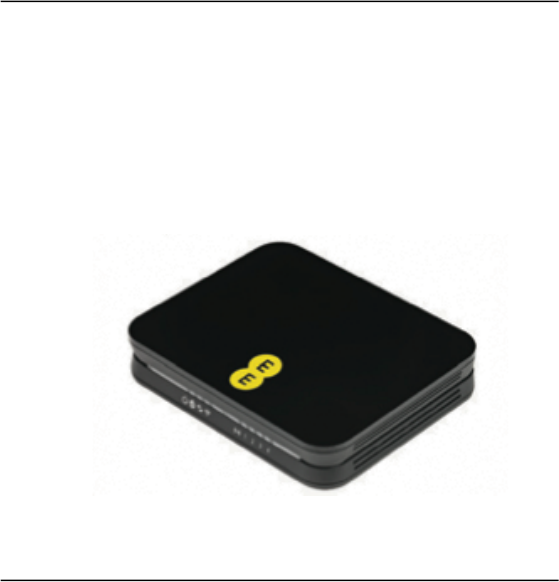
EE Bright Box User Manual 9 CHAPTER 2: ROUTER IDENTIFICATION AND PANELS ROUTER IDENTIFICATION The Bright Box Wireless Router is black with an EE logo
EE Bright Box User Manual 90 If the USB drive doesn’t automatically appear in your Windows or Mac OS X network location, then you can manually ac
EE Bright Box User Manual 91 The following table contains a description of the fields and options in the Wireless Settings page: Field Description
EE Bright Box User Manual 92 permissions for the attached USB drive. By default this setting is ‘Read & Write’. Select ‘Read & Write’ to allo
EE Bright Box User Manual 93 3. In the ‘Security Control’ field, set the option to ‘Enable’ 4. Update the ‘User Name’ and ‘Password’ fields as app
EE Bright Box User Manual 94 7. The next time you attempt to access the attached USB drive, you will be prompted to enter the username and password
EE Bright Box User Manual 95 CHAPTER 7: BRIGHT BOX ADVANCED SET-UP PAGES The Advanced Set-Up pages contain configuration pages for a wide variety of
EE Bright Box User Manual 96 Description of Advanced Broadband Settings Many of the advanced Broadband Settings are identical to those described in
EE Bright Box User Manual 97 Broadband. Select ‘Auto’ for automatic detection of the authentication protocol used to connect to you Internet service.
EE Bright Box User Manual 98 ADSL MODE The ADSL Mode page allows you to change your ADSL connection mode (sometimes known as modulation type). The AD
EE Bright Box User Manual 99 CHANNEL AND SSID The Channel and SSID page contains some advanced wireless configuration settings that give you extra co
More documents for Routers EE Brightbox

Acer 1670 manuales
Manuales del propietario y guías del usuario para Cuadernos Acer 1670.
Ofrecemos 1 manuales en pdf Acer 1670 para descargar gratis por tipos de documentos: Manual de usuario

Tabla de contenidos
7
13
16
17
18
19
20
21
21
22
25
26
28
29
31
41
43
52
69
73
78
79
80
96
99
101
102
Más productos y manuales para Cuadernos Acer
| Modelos | Tipo de documento |
|---|---|
| NX.MQQET.015 |
Ficha de datos
 Acer Aspire R7-371T-54GH,
1 paginas
Acer Aspire R7-371T-54GH,
1 paginas
|
| TravelMate MS2231 |
Manual de usuario
Acer TravelMate MS2231 User's Manual,
14 paginas
|
| NX.MRHET.013 |
Ficha de datos
Acer Aspire E5-571G-56HR,
1 paginas
|
| NX.ML8ET.016 |
Ficha de datos
Acer Aspire E5-571-37T9,
1 paginas
|
| 9800 |
Manual de usuario
Acer Aspire 9810 User manual,
129 paginas
|
| NX.MUVET.001 |
Ficha de datos
Acer Aspire VN7-591G-77FH,
1 paginas
|
| NU.SH7ED.003 |
Ficha de datos
Acer Chromebook C710-10072G01ii,
1 paginas
|
| Aspire 7540 |
Manual de usuario
Acer Aspire 7540G User manual,
12 paginas
|
| NX.MNJET.036 |
Ficha de datos
Acer Aspire V3-572G-77GQ,
1 paginas
|
| NX.VAWET.009 |
Ficha de datos
Acer TravelMate P6 P645-S-55XU,
1 paginas
|
| NX.EF1ET.003 |
Ficha de datos
Acer Extensa EX2508-C1KY,
1 paginas
|
| NX.MRKET.001 |
Ficha de datos
Acer Aspire ES1-111-C0V1,
1 paginas
|
| NX.V9PET.015 |
Ficha de datos
Acer TravelMate P2 P256-MG-728J,
1 paginas
|
| NX.MRHET.029 |
Ficha de datos
Acer Aspire E5-571G-597D,
1 paginas
|
| Extensa Series |
Manual de usuario
Acer Extensa Series User's Manual,
88 paginas
|
| 6593 |
Manual de usuario
Acer 6593 User's Manual,
180 paginas
|
| NX.MLTEK.063 |
Ficha de datos
Acer Aspire E5-571-779U,
1 paginas
|
| NX.VAGET.006 |
Ficha de datos
Acer TravelMate P6 P645-SG-77DV,
1 paginas
|
| 4050 |
Manual de usuario
Acer 4050 User's Manual,
90 paginas
|
| AX1430-UD30P |
Manual de usuario
Acer AX1430-UD30P User's Manual,
95 paginas
|
© 2020, manymanuals.com. All rights reserved. | 0.054 s |
 Manymanuals.com
 Manymanuals.de
 Manymanuals.fr
 Manymanuals.it
 Manymanuals.pl
 Manymanuals.cz
 Manymanuals.es
 Manymanuals-pt.com
Comments to this Manuals